Terminology and Overview
Resources are the building blocks of INIXApp applications. Every item in the application menu on the left side of the application window represents a resource. A set of standard resources is provided in $(INDEL_ROOT)/share/resource, and you can build your own as explained in this document.
A resource can, but need not, have a page that presents its graphical user interface. A page is an INIX plugin or an INIX plugin hierarchy (IGD hierarchy).
A resource can, but need not, contain other resources (subresources) that appear as sub-items of its menu item in the application menu. Any number of these subresources can be displayed at a time next to the resource's page (if any). The author can specify how many subresources are displayed at a time by default, but the user can change that number at will.
Most resources have either a page or a set of subresources, some have both. Resources that have neither a page nor subresources are possible too, but are of limited usefulness.
The main area of the application window contains rectangular regions named work places, identified by a narrow blue or yellow bar at the top or left that expands when touched by the mouse to display a number of controls. Work places are where the contents of resources (pages and subresources) are displayed, every work place always contains exactly one resource. Work places can be nested in a way that corresponds to the resource hierarchy shown in the application menu: A work place that displays a certain resource can (adjacent to the resource's page, if any) contain sub-work-places that each display one of the resource's subresources.
When a resource is selected in the menu, different things can happen, depending on the state of the switcher button at the top of the window that determines whether to use an existing work place or to create a new one. Pressing the shift key while clicking on the menu item reverses that choice.
- If an existing work place is to be used:
- If the resource is already displayed in some work place, that work place becomes selected (identified by the yellow header bar), and the resource's commands become available in the commands menu to the right. The same thing can be accomplished by clicking on the header bar of the work place, or setting the keyboard focus to some control in the resource's page.
- If the resource was not displayed before, it is brought up in the last selected sub-work-place of the parent resource's work place, replacing the resource that was previously displayed there. Sub-work-places are automatically opened for the subresources of the selected resource to restore the state in which it was left before (or its default state).
- Otherwise, a new work place is created for the resource within the parent resource's work place. If the resource was already displayed in some other work place before, that means that a second instance of the resource is opened, for which a new item appears in the menu.
The page and sub-work-places in a work place can be arranged either horizontally or vertically, the leftmost/topmost button in the header bar switches between the two orientations. The relative size of stretchable sub-work-places can be changed by dragging the divider between work places. Dragging the divider to the side edge of the frame is another way of switching between horizontal and vertical orientation. Whether a work place is stretchable or fixed-size is determined by the contained resource (using the WorkPlaceDefaults property). The size and resizing behavior of a page is set by its author (in IGD files or whichever other means of setting the relevant INCO variables).
Anatomy of a Resource
A resource is stored as a folder in the file system. The only mandatory requirement to make a folder a resource is that it contain a text file named resource.prp. It can also contain other files and folders as discussed further on, e.g.:
- a resource.py script implementing parts of the resource's functionality (see The resource.py Script).
- a _Resources_ folder containing subresources (see Resources)
- page contents: a _Plugin folder and possibly other items (see Page Contents)
- an icon file (see Icon)
The resource.prp File
resource.prp is a text file that describes the properties of the resource. It is formatted as a Python dictionary that maps string keys to values of various types (strings, numbers, lists, dictionaries, tuples etc.) as shown in the examples below. Since it is interpreted by the eval() Python function, it may consist of arbitrary Python expressions (as long as they evaluate to legal values). For more information about the syntax of such expressions, see the corresponding sections in the Python tutorial (e.g. strings, numbers, lists, dictionaries) or the Python language reference (e.g. strings, numbers, lists, dictionaries).
- Examples
- The minimal legal resource.prp file consists of an empty dictionary:
{}
- A slightly more elaborate resource.prp file for a resource whose only purpose is to contain two standard resources as subresources might look like this:
{
        "Title": "Plot & Memory Dump",

        "Resources": [
                "misc/plot",
                "debug/memdump"
        ]
}
- For a resource that only encapsulates a page (an INIX plugin), resource.prp might look like this:
{
        "Title": "Memory Dump",

        "Commands": [
                ("Find…", "OnMenuFind"),
                ("Clear…", "OnMenuClear"),
                ("Copy…", "OnMenuCopy"),
                ("Save…", "OnMenuSave"),
                ("Load…", "OnMenuLoad")
        ],

        "PageDefaults": {
                "Prop.Address": 0xDEADBEEF,
        }
}
Specifically, the following keys are allowed in a resource.prp file. All of them are optional and most have a default value that is used when the key is not specified.
-
Title
A human-readable title for the resource. This is what's displayed in the application menu and in the work place header.
Default value: the name of the resource folder in the file system
-
LongTitle
A long version of the human-readable title for the resource. This is what's displayed in the window title for the top-level resource.
Default value: the value of Title
-
Icon
The file name of an image file, located in the resource folder, to be used as the icon of the INIXApp window when this resource is the top-level resource. Any file format readable by wxImage is allowed, but it is recommended to use a format that can contain icons in multiple sizes (at least 16x16 and 32x32), such as Windows ICO. Some limitations are imposed by wxWidgets and/or the underlying OS:
- When several icons of the same size are available, the last one takes precedence (not the one with the best matching color depth).
- In 32-bit RGBA ICOs, the alpha channel is ignored and the 1-bit mask is used. (Note: GIMP calculates the mask from the alpha channel by rounding to nearest in versions 2.3.12 and above, by rounding down in older versions.)
- On Windows 2000 and XP, for 32-bit RGBA images (e.g. PNG), the alpha channel is converted to a 1-bit mask by rounding to nearest.
Default value: None
-
Base
This is what you use when you want to incorporate an existing resource, but with slightly modified properties. By making a resource whose resource.prp contains your customized properties plus a Base property that refers to an existing resource, you create an inheritance relationship: Your new resource inherits all properties from the base resource, making it basically a copy of it, except for the properties you override by explicitly specifying them in your resource.prp. That base resource may itself inherit some of its properties from another base resource, creating an inheritance chain: the resource at the bottom of the chain has all properties of the resources higher in the chain, with some overridden and some new ones added. Overriding an inherited property usually means replacing it, e.g. specifying a Resources list in a derived resource does not append new subresources to the subresources of the base resource, but replaces them with the given list. Exceptions to this rule are:
- the ResourceDefaults, PageDefaults, and WorkPlaceDefaults properties—these dictionaries are merged entry-by-entry, not replaced as a whole: every entry in the ResourceDefaults dictionary of the derived resource only overwrites the same entry of the base resource, all other entries are inherited unchanged;
- the Commands property: the commands specified in this resource.prp are merged into the ones of the base resource, in a way that allows the derived resource to add to, remove, modify, and reorder the commands of the base resource. See Overriding Base Commands for details.
- the VariablePages property: the pages specified in this resource.prp are appended to the ones inherited from the base resource.
The value of the Base property is either
- the absolute file system path of a resource, or
- a relative file system path (usually, just a name), which is interpreted relative to any of the folders searched by INIXApp.ResourceInstance.FindResource().
Default value: None
-
Resources
A list of strings that specifies the subresources of this resource. Similar to the Base property, every list entry can be
- the absolute file system path of a resource, or
- a relative file system path (usually, just a name).
Resources specified as a relative path are searched for in a variety of locations, see INIXApp.ResourceInstance.FindResource() for more details. Most importantly:
- a folder named _Resources_ in this resource's folder,
- the standard resources folder $(INDEL_ROOT)/share/resource.
To specify which subresources are displayed by default when this resource is opened, and thereby the default number of sub-work-places, mark any number of entries of this list by enclosing each of them in a pair of square brackets
[](technically, this means that this property is not a list of strings as stated above but a list of strings and lists containing a single string). These defaults are only applied the first time the resource is opened by the user, afterwards the resource is reopened in the state it was last closed.Default value:
[] -
Commands
Defines the commands to be displayed in the commands menu at the right side of the application window. These commands can either invoke methods of the Python ResourceInstance object representing the resource, or INCO procedures. See The resource.py Script for information on how to define Python methods.
The Commands property is a list of 2- or 3-tuples that describe menu items:
- The first item of each tuple is a string, the menu item title.
-
The second item defines the kind of menu item and can have one of several forms:
- A string, to create a menu item that invokes a method on the ResourceInstance object. The string is the name of the method to be called when the menu item is selected. See Commands Menu Methods.
- A list of tuples that has the same form as the Commands property itself, to create a submenu.
-
A 2-tuple whose first item is
"DYNAMIC", to create a placeholder for items that are to be determined dynamically every time the menu is expanded. The second item of the tuple, a string, specifies the method of the ResourceInstance object that is invoked to set up the menu items. See Commands Menu Methods. This is also the option to use if menu items need to be checked or disabled at the time the menu is displayed. Since the titles of dynamic menu items are set by the method that creates them, the placeholder menu item tuple doesn't need a title, its first item is ignored and may be set toNone. -
[FIXME: not implemented yet] A 2-tuple whose first item is
"INCO": as the second item, the tuple contains the INCO path of a folder that contains procedures to be presented as menu items. That folder and its subfolders are scanned for procedures that take no arguments, and every such procedure is presented as a menu item, with subfolders creating submenus. If this is a relative INCO path (i.e. starts with a period), it is interpreted as relative to this resource's page (or ignored if the resource has no page). An absolute path is used as-is. [FIXME: What to do if that folder should live on the target? Maybe we could hook into the INCO service's capability of expanding placeholders such as ${Prop.Target}.] - [FIXME: We might also accept a <command with placeholders> (see INIX syntax spec) in some form. That could eliminate the need for Python methods in some cases.]
-
The optional third item defines a keyboard equivalent for the menu item. This is only useful for menu items that have an action (second tuple item is a function name), not for submenus. This string has the form
- ["
global"]["ctrl-"]["alt-"]key
(case insensitive), where key is a key name recognized by the HotKey service plugin. Examples:
"global F2","alt-Z","Ctrl-Pause".If "
global" is present, the keyboard equivalent is system-wide, otherwise it is application-wide. Keyboard equivalents stay active as long as the resource they belong to is displayed. If two active resources define the same keyboard equivalents, the one whose work place was last activated takes precedence.If no keyboard equivalent is desired, but an icon is, this tuple item can be set to
Noneas a spacer. - ["
- The optional fourth item indicates an icon to be displayed on the menu item. It is the path of an image file relative to the resource folder. Grayscale images without alpha channel are adapted to the text color of the menu item, with white converted to foreground and black to background.
- Example
"Commands": [
        ("Menu Item A", "OnMenuA"),
        ("Submenu Title", [
                ("Submenu Item 1", "OnMenuSub1", "global ctrl-alt-1"),
                ("Submenu Item 2", "OnMenuSub2")
        ]),
        ("Menu Item B", "OnMenuB", "F2"),
        ("Menu Item C", "OnMenuC", None, "_Pictures_/iconC.png"),
        ("Dynamic Submenu", [
                (None, ("DYNAMIC", "CreateDynamicMenu"))
        ]),
        ("Page Commands", ("INCO", ".UserCmd"))
]
Overriding Base Commands
For a derived resource (one that has a Base property), the commands list is merged into the one of the base resource in the following way:
- Items with titles that match the titles of base items update the latter: If both items are submenus, their contents are merged recursively, otherwise the new item replaces the base item.
- Items with new titles are added.
- Base items are rearranged if necessary to make all items mentioned in the derived resource appear in the order in which they are listed.
Two additional item tuple types are available in derived resources:
- If the second item is
None, a base item with matching title is removed from the menu. - If there is no second item (i.e. it's a 1-tuple:
("Title",)), a base item with matching title is adopted unmodified (used to reorder base items).
Default value:
[] -
UnloadOnLeave
A boolean value that specifies what happens when the page of this resource disappears because the user selected a different resource in the application menu. If it is
True, the page is completely removed from the application, after saving its persistent properties (see PageDefaults). The next time the resource is entered, it will be reloaded from disk (and the persistent properties restored). If UnloadOnLeave isFalse, the page will just be hidden, which makes re-entering faster, but uses more memory.Default value:
True -
ResourceDefaults
A dictionary that specifies which properties of the resource should be persistent, and gives default values for them. Persistent means that a property will be saved to disk when the resource is unloaded, and restored when it is loaded again.
These properties are stored as attributes of the INIXApp.ResourceInstance Python object that represents this resource (see also The resource.py Script). The keys of this dictionary are the attribute names, and each value is the default value for the respective attribute that is used when no previously saved value is available. Any Python value that can be serialized using
repr()is allowed, in particular, strings, numbers, lists, and dictionaries.Default value:
{} -
PageDefaults
A dictionary that specifies which properties of the resource's page should be persistent, and gives default values for them. Persistent means that a property will be saved to disk when the page is destroyed, and restored when it is created again.
The keys of this dictionary are the INCO paths of variables of the page, e.g.
"Prop.Text". Each value of the dictionary is the default value for the respective variable that is used when no previously saved value is available.Default value:
{} -
WorkPlaceDefaults
A dictionary that specifies which properties of the resource's work place should be persistent, and gives default values for them. Persistent means that a property will be saved to disk when the resource is left, and restored when it is entered again.
The keys of this dictionary are the INCO paths of variables of the work place, e.g.
"Prop.Layout.Size.Width". Each value of the dictionary is the default value for the respective variable that is used when no previously saved value is available.This property is usually used to set the orientation and relative size of the work place. E.g. to make the work place fixed-size instead of stretchable, use
"WorkPlaceDefaults": {
        "Prop.Layout.Size.HorizontalStretchable": 0,
        "Prop.Layout.Size.VerticalStretchable": 0,
        "Prop.Layout.Size.Width": 200,
        "Prop.Layout.Size.Height": 100
}
Default value: <tt>{"Prop.ClientLayout.Mode": 4, "Prop.Layout.Size.HorizontalStretchable": 1, "Prop.Layout.Size.VerticalStretchable": 1, "Prop.Layout.Size.StretchProportion": 10}</tt> <li><h3>Version</h3>An arbitrary string that will be displayed as this resource's version in the About INIX dialog. If it contains an expanded Subversion Rev keyword ($Rev: 123 $), the dollar signs and keyword will be removed and only the value (123) left for display.
Default value: None
-
ShowHideButton
If this boolean property is set to
True, a button is displayed at the top of the window that permits to quickly hide and show the work place in which this resource is open.Default value: False
-
VariablePages
A list of 2-tuples describing pages that this resource provides in the variables panel. The first item of each tuple is the name of the page (displayed in the pop-up menu in the title bar of the variables panel). The second item is a
;-separated list of variable or folder paths (a string in the syntax of the Prop.RootPath field of the explorer plugin). Paths that include a target refer to that fixed target, paths without a target are interpreted relative to the current target of the application (Prop.Target).- Example
"VariablePages": [
        ("First Page", "Target.Prop"),
        ("Second Page", "./App.Prop.Text;./Prop.Target")
]
Default value: []
The resource.py Script
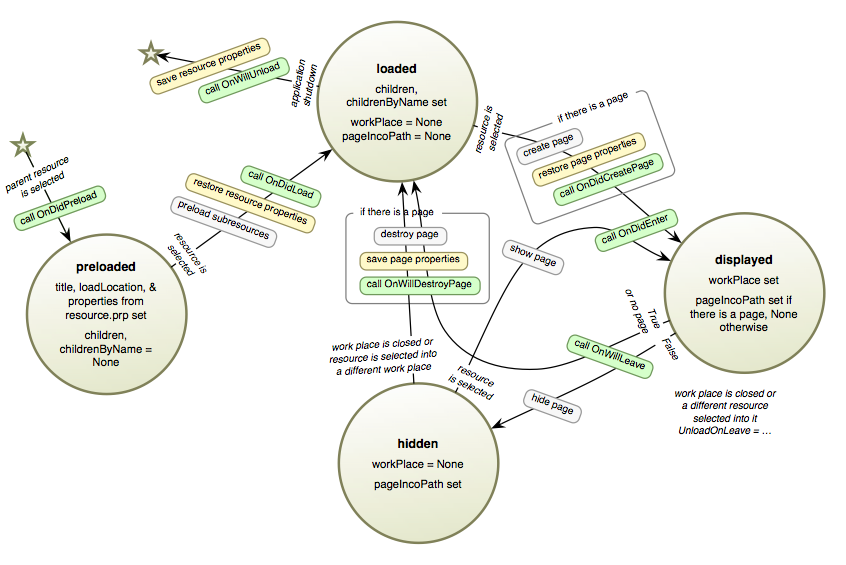
Every resource that is present in the application menu is represented in Python by an object of class INIXApp.ResourceInstance (or a subclass thereof). Given the index path of a resource, this object can be retrieved by INIXApp.GetResourceInstance(). Its attributes contain the main properties of the resource, including those set by ResourceDefaults, and it provides some methods that could be of use to scripts used in the resource (documented in the class documentation). New attributes can be created on this object to store additional resource state. Functionality can be added to this object by defining a custom subclass as detailed below, in particular methods OnDidEnter, OnWillLeave, OnDidCreatePage, OnWillDestroyPage, OnDidLoad, OnWillUnload, OnDidPreload can be overridden to perform custom actions at specific points in the life cycle of the resource (see Resource Life Cycle), method PopulateCommandsMenu can be overridden to create a dynamic commands menu (see Dynamic Menus by Overriding PopulateCommandsMenu), and methods to be called by command menu items (see Commands Menu Methods) or by other resources can be added.
To make a custom class for the ResourceInstance object of a resource, a Python file named resource.py is added to the resource folder. This file is expected to define exactly one subclass of ResourceInstanceBase (which is a global variable that usually refers to INIXApp.ResourceInstance, or to a subclass of it if the resource has a Base resource that defines a custom subclass). The name of this class is irrelevant. The file may define other classes, functions, or variables for its own use, but these will not be accessible from outside unless specifically made so through the resource instance.
- Example
- resource.py from inco_32 import *class MyResourceInstance(ResourceInstanceBase):# methods overridden from the superclass, called automaticallydef OnDidLoad(self):# must include a call to the superclassResourceInstanceBase.OnDidLoad(self)# create an INCO variable with a property of the resource (from# ResourceDefaults), e.g. for display in a variable pluginvarPath = self.PutOrCreateIncoVariable("MyVariable", self.MyVariable))# add a trigger to it to be notified when it changesPutVariable(".", varPath + "!Triggers", "Add;!=;" + self.GetMethodCallIncoAction("VariableChanged"))def OnWillUnload(self):# must include a call to the superclassResourceInstanceBase.OnWillUnload(self)# remove the trigger on the variablePutVariable(".", "App.Menu.Items." + self.indexPath + ".MyVariable!Triggers","Remove;!=;" + self.GetMethodCallIncoAction("VariableChanged"))# put the variable value back into the object attribute so that it will# be saved with the persistent propertiesself.MyVariable = GetVariable(".", "App.Menu.Items." + self.indexPath + ".MyVariable")# a custom method, called by the triggerdef VariableChanged(self):if GetVariable(".", "App.Menu.Items." + self.indexPath + ".MyVariable") > 0:print "Positive!"else:print "Negative!"
Commands Menu Methods
Methods named in the Commands property as handlers for menu items receive one argument (two if you count self), the index path in the commands menu of the item that invoked them.
Methods specified as dynamic menu creators in Commands receive two arguments: the index path in the commands menu of the item that is being expanded and into which items should be inserted, and an integer specifying the position at which items are to be inserted (derived from the location of the placeholder item in the commands list). To do so, the method should directly use the INCO interface of the menu plugin. The position argument can be directly passed to Cmd.AddMenu(), it is negative (counted from the end), hence using it multiple times will cause the new items to appear in the order they are created. Because the method is called every time the menu is expanded, it should not blindly add new items, but check if they are already there and either remove them first or only add new ones if they aren't, e.g. by keeping track of them in a custom attribute of the self object (make sure to invalidate this attribute in OnWillLeave, when the menu is going to be destroyed). Tools the method has at its disposal for creating menu items include GetMethodCallIncoAction to generate actions and INIXApp.AddKeyboardEquivalent to add keyboard equivalents.
- Example
- A resource.py script corresponding to the example from the Commands section might look like this: from inco_32 import *from inco import CallProcedurePyimport INIXAppclass MyResourceInstance(ResourceInstanceBase):def OnWillLeave(self):ResourceInstanceBase.OnWillLeave(self)# menu will be destroyed, make sure it's recreated next timeself.dynamicMenus = []def OnMenuA(self, aCommandIndexPath):CallProcedure(".", self.pageIndexPath + ".Cmd.DoSomething(17:l)")def OnMenuSub1(self, aCommandIndexPath):PutVariable(".", "App.Command.Items." + aCommandIndexPath + ".Title", "A new Title")def OnMenuSub2(self, aCommandIndexPath):print self.SomePropertydef OnMenuB(self, aCommandIndexPath):self.SomeProperty = "B"def OnMenuC(self, aCommandIndexPath):self.SomeProperty = "C"def CreateDynamicMenu(self, aCommandIndexPath, aPosition):if not hasattr(self, "dynamicMenus"):self.dynamicMenus = []# add some itemsif self.dynamicMenus == []:i = int(CallProcedurePy(".", "App.Command.Cmd.AddMenu", "A", aCommandIndexPath, self.GetMethodCallIncoAction("ToggleMenu", "#{PLUGIN_NAME}"), aPosition, 0))self.dynamicMenus.append(aCommandIndexPath + ("_%d" % i))i = int(CallProcedurePy(".", "App.Command.Cmd.AddMenu", "B", aCommandIndexPath, self.GetMethodCallIncoAction("OnMenuSub2", "#{PLUGIN_NAME}"), aPosition, 0))self.dynamicMenus.append(aCommandIndexPath + ("_%d" % i))i = int(CallProcedurePy(".", "App.Command.Cmd.AddMenu", "C", aCommandIndexPath, self.GetMethodCallIncoAction("SetProperty", "C"), aPosition, 0))self.dynamicMenus.append(aCommandIndexPath + ("_%d" % i))i = int(CallProcedurePy(".", "App.Command.Cmd.AddMenu", "D", aCommandIndexPath, self.GetMethodCallIncoAction("SetProperty", "D"), aPosition, 0))self.dynamicMenus.append(aCommandIndexPath + ("_%d" % i))# check item APutVariable(".", "App.Command.Items." + self.dynamicMenus[0] + ".Checked", 1)# add a keyboard equivalent to item AINIXApp.AddKeyboardEquivalent("global Ctrl-F3", self.dynamicMenus[0], self.indexPath)def ToggleMenu(self, aCommandIndexPath):checked = int(GetVariable(".", "App.Command.Items." + aCommandIndexPath + ".Checked"))PutVariable(".", "App.Command.Items." + aCommandIndexPath + ".Checked", 1-checked)def SetProperty(self, aValue):self.SomeProperty = aValue
- Notes
- To make dynamic menu items that call methods with the same signature as those for static menu items, i.e. with one argument specifying the menu item index path, use the misleadingly named
#{PLUGIN_NAME}constant (see Constants on the Syntax Definitions page) in the second argument to GetMethodCallIncoAction, as in dynamic items A and B in the example above. In the context of the menu item action, it expands not to a plugin name, but to the name of the INCO folder in which the action lives, which is the index path of its item (see Action in the Menu Plugin User Documentation). - Sometimes it can be useful to define even de-facto static menu items using the dynamic mechanism because it gives you control over the actions, e.g. to handle several menu items using the same method, but with different parameters, as for dynamic items C and D in the example.
- To make dynamic menu items that call methods with the same signature as those for static menu items, i.e. with one argument specifying the menu item index path, use the misleadingly named
Dynamic Menus by Overriding PopulateCommandsMenu
One mechanism of creating a dynamic commands menu is to use "DYNAMIC" items in the Commands property, as described above. There is a second mechanism that bypasses the Commands property altogether: Your ResourceInstance subclass can override the PopulateCommandsMenu method that implements interpretation of the Commands property. This approach is particularly suitable if your resource can have no commands at all depending on circumstances because it allows you to hide an empty menu. By calling the superclass in the overriding implementation, parts of the menu can still be built from a Commands property. See the PopulateCommandsMenu description for details.
Page Contents
To attach a page, i.e. an IGD hierarchy, to a resource, treat the resource folder itself as the root of the IGD hierarchy. In other words, the resource folder should contain a _Plugin folder with a Type.igd file, and possibly other items such as _Prop, _Streams_, or _Scripts_ folders.
Resource Life Cycle
The following diagram describes the possible states of a ResourceInstance (see GetState()) and details some of the actions that happen on state transitions.